Digital menu
Your menu, on your customers' phones, always up to date.
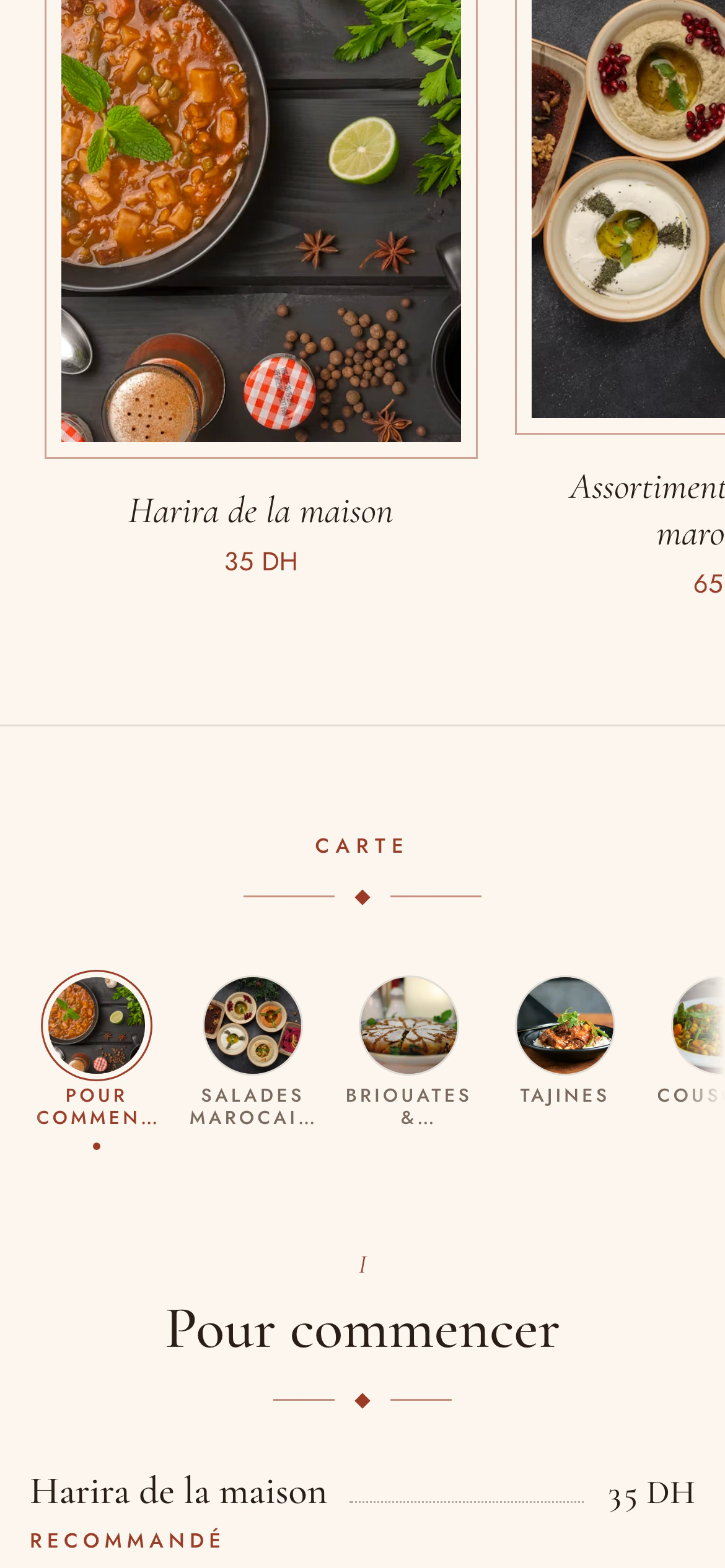
Build your menu in Menly — categories, dishes, set menus, options — and share it with a QR code. A price changes, a dish sells out: your customers see it the next time the menu loads.
- No app needed
- Photos and descriptions
- Five themes
Build
A menu organized like your kitchen.
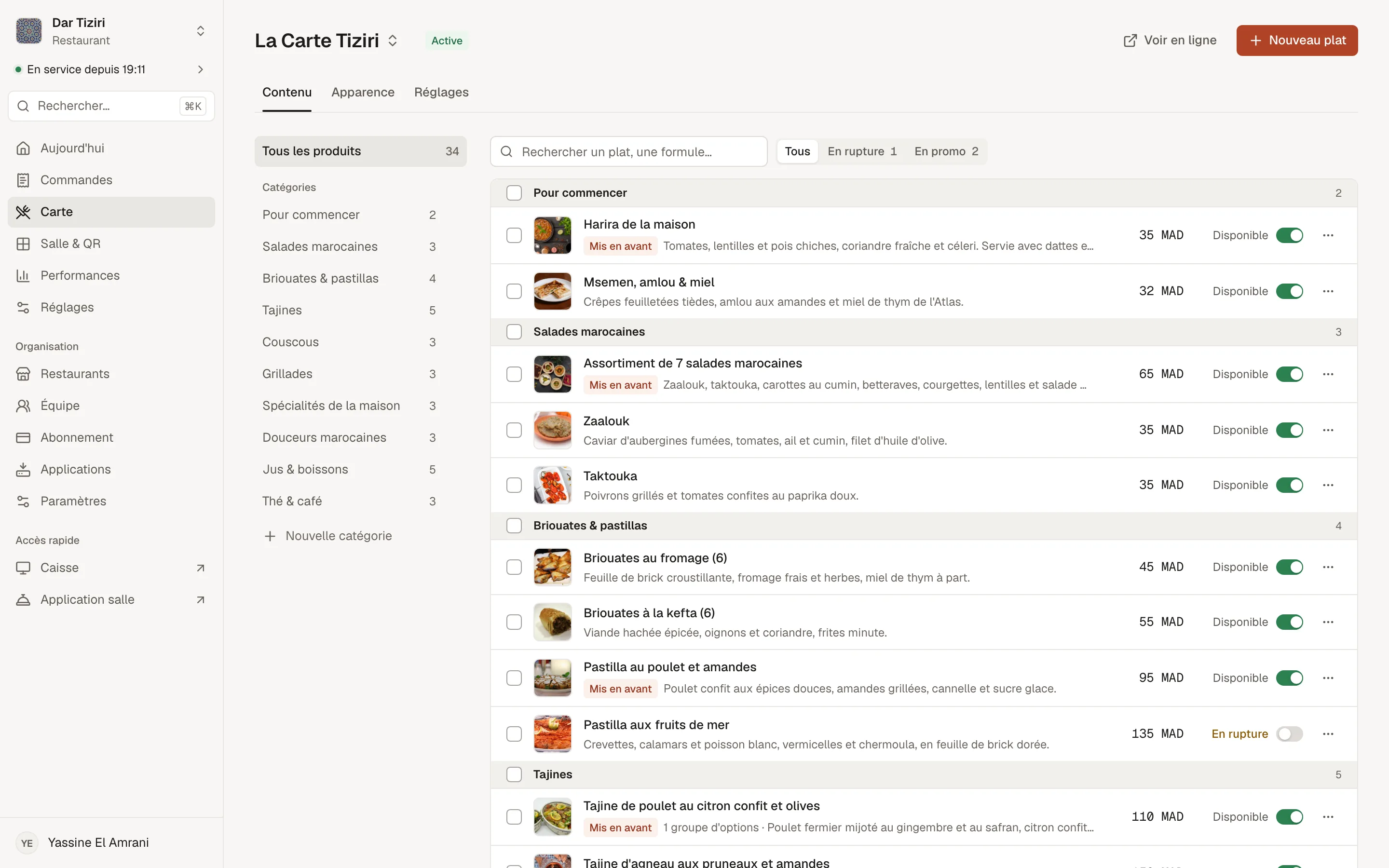
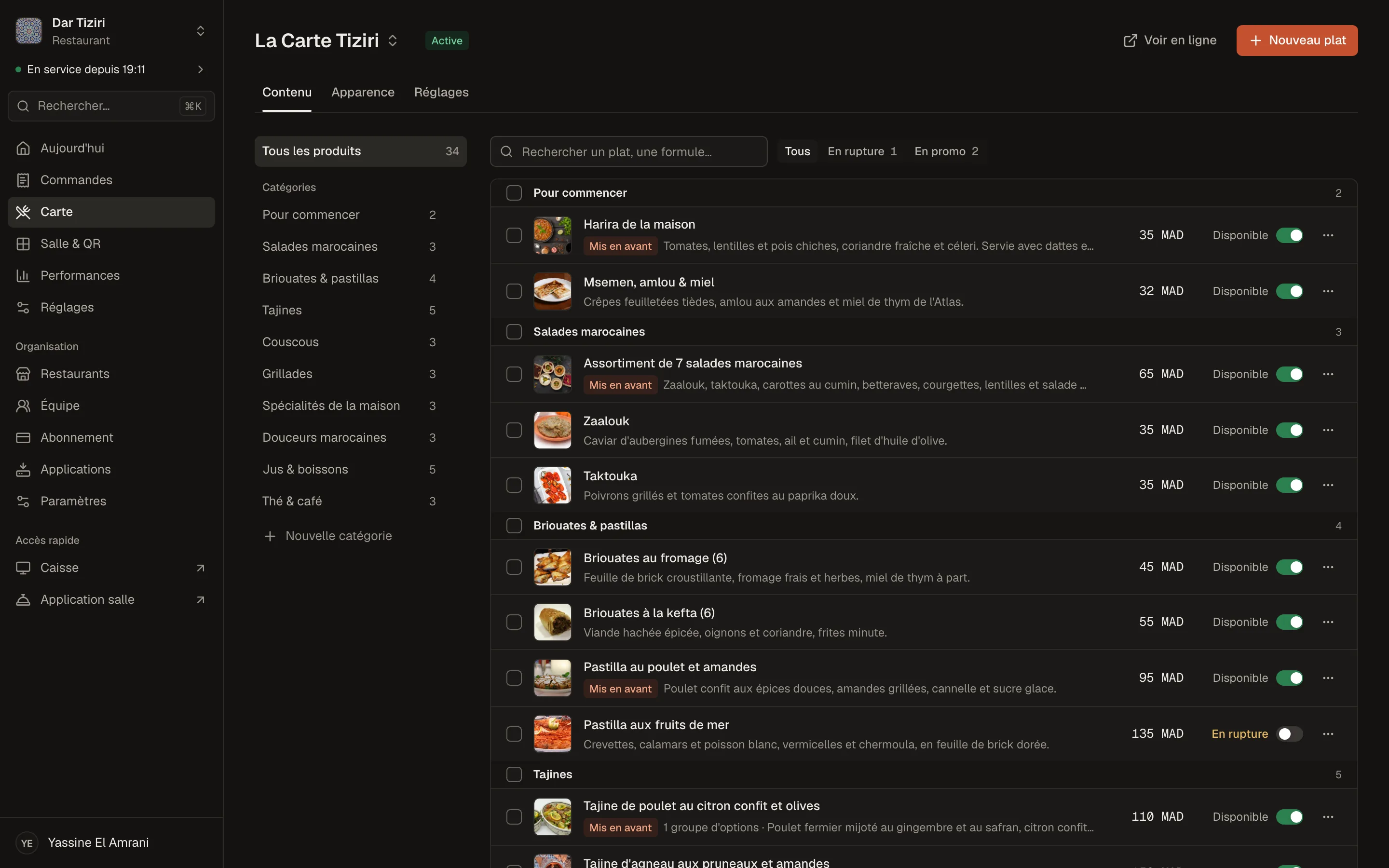
A menu is made of categories, each with its image and its place in the menu. In each category, your dishes and your set menus. You reorder, hide and duplicate without breaking anything.
- Categories with an image and display order
- Dishes with photo, description and price
- “Recommended” dishes highlighted
- A dish can exist only as a choice within another dish or a set menu
The menu
Chicken tagine with lemon
85 DH95 DH
Compose
Set menus, options and suggestions.
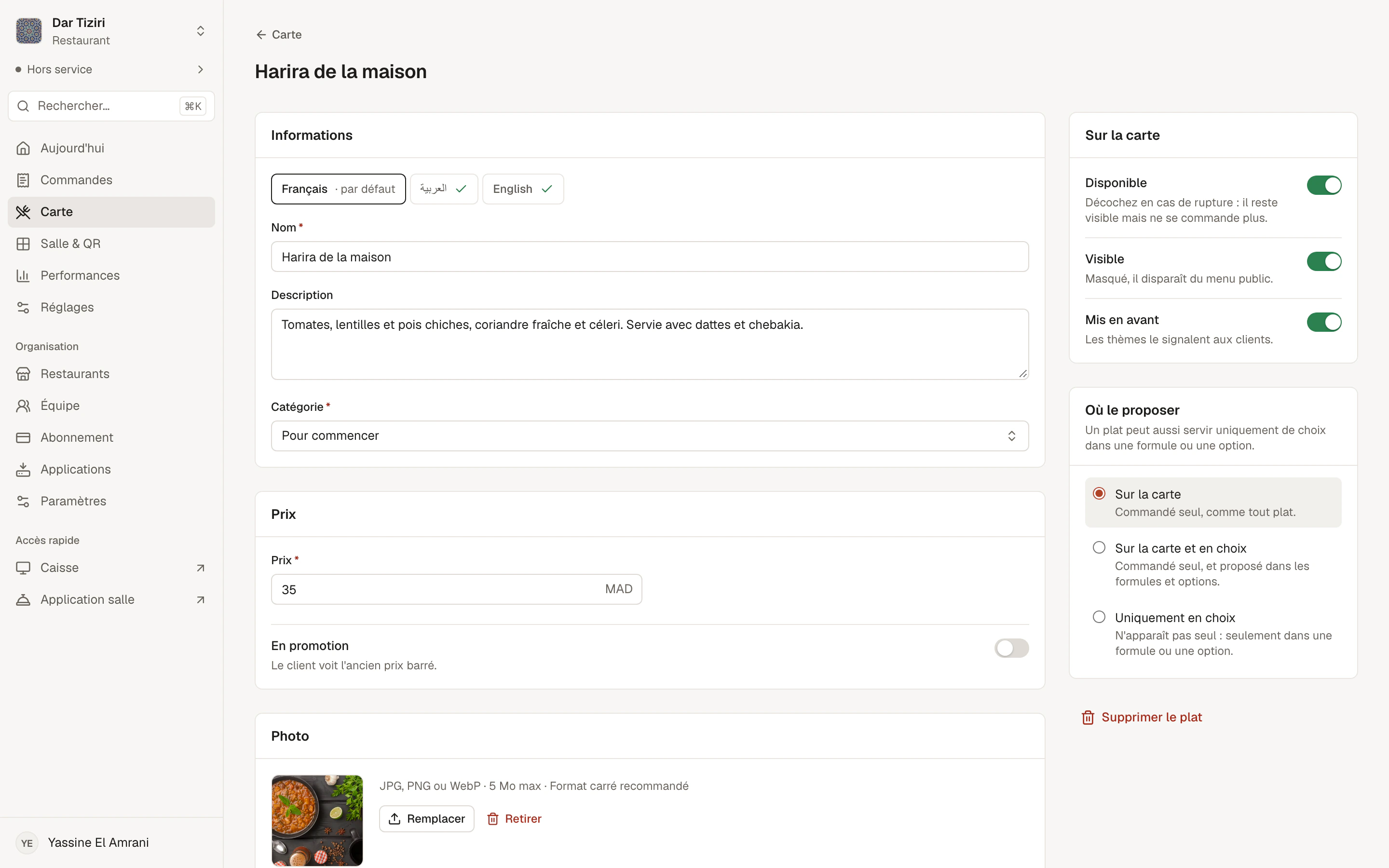
Set menus sell at a fixed price: fixed dishes, or a choice per category. Options — cooking, side, sauce, paid add-ons — come from a library shared by all your dishes. And each product can suggest up to 10 other products to the customer.
- Option groups with minimum, maximum and extra charge
- An option can be a dish from your menu
- Suggestions shown on the dish page and in the cart
Options and extras are included from the Standard plan.
Day to day
The small changes that make the service.
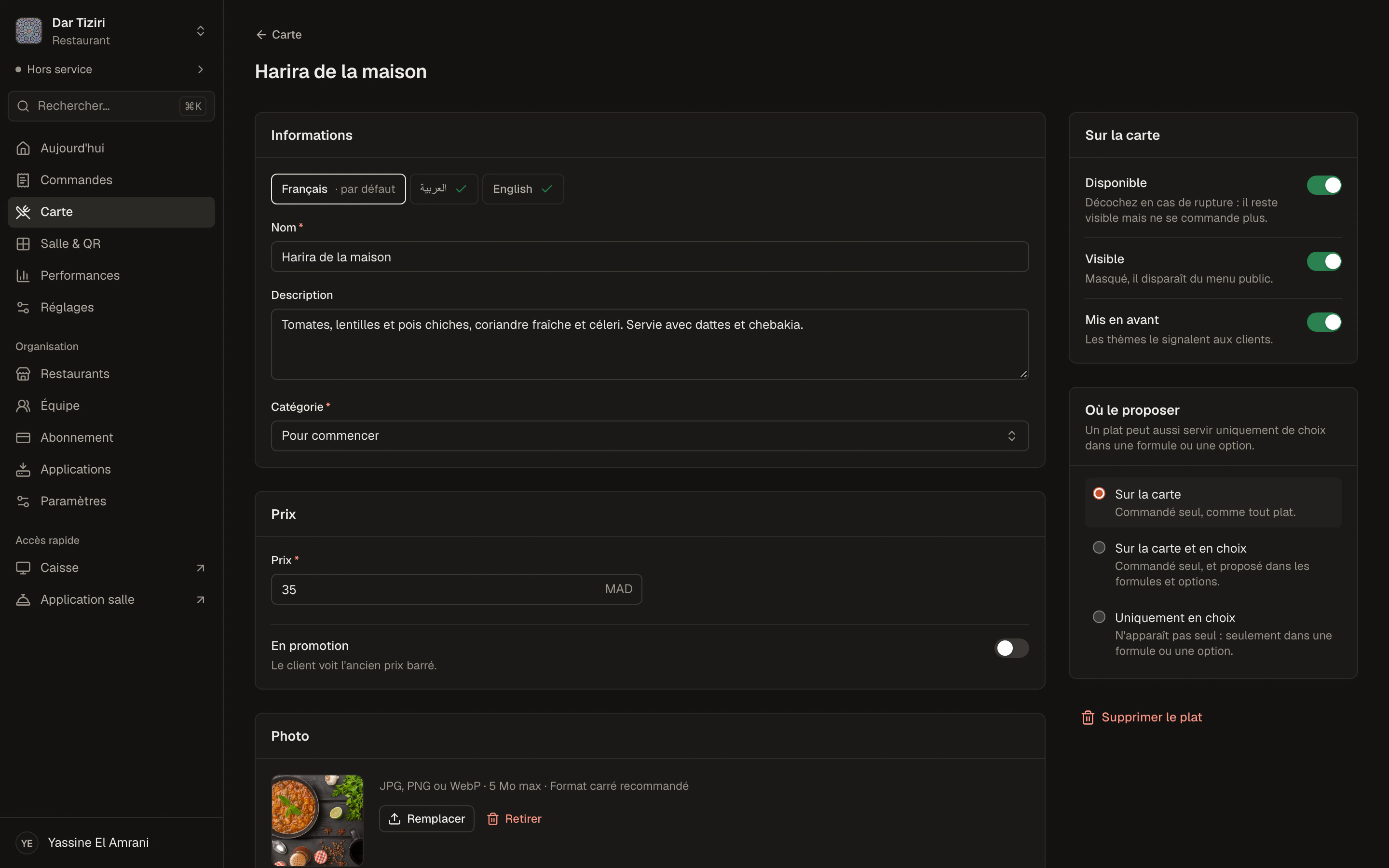
Promotional price
Turn on a promotional price: the customer sees the new price and the old one, struck through.
Sold out
A sold-out dish can no longer be ordered. You choose whether it stays visible or not.
Hidden
Remove a dish from the menu without deleting it, and bring it back whenever you want.
Several menus
The main menu, an evening menu, a Ramadan menu: only one is active at a time, and you switch in one tap.
Prices shown or not
Each menu can show or hide prices, for example for an event menu.
Search
Your customers search for a dish directly in the menu.
Customize
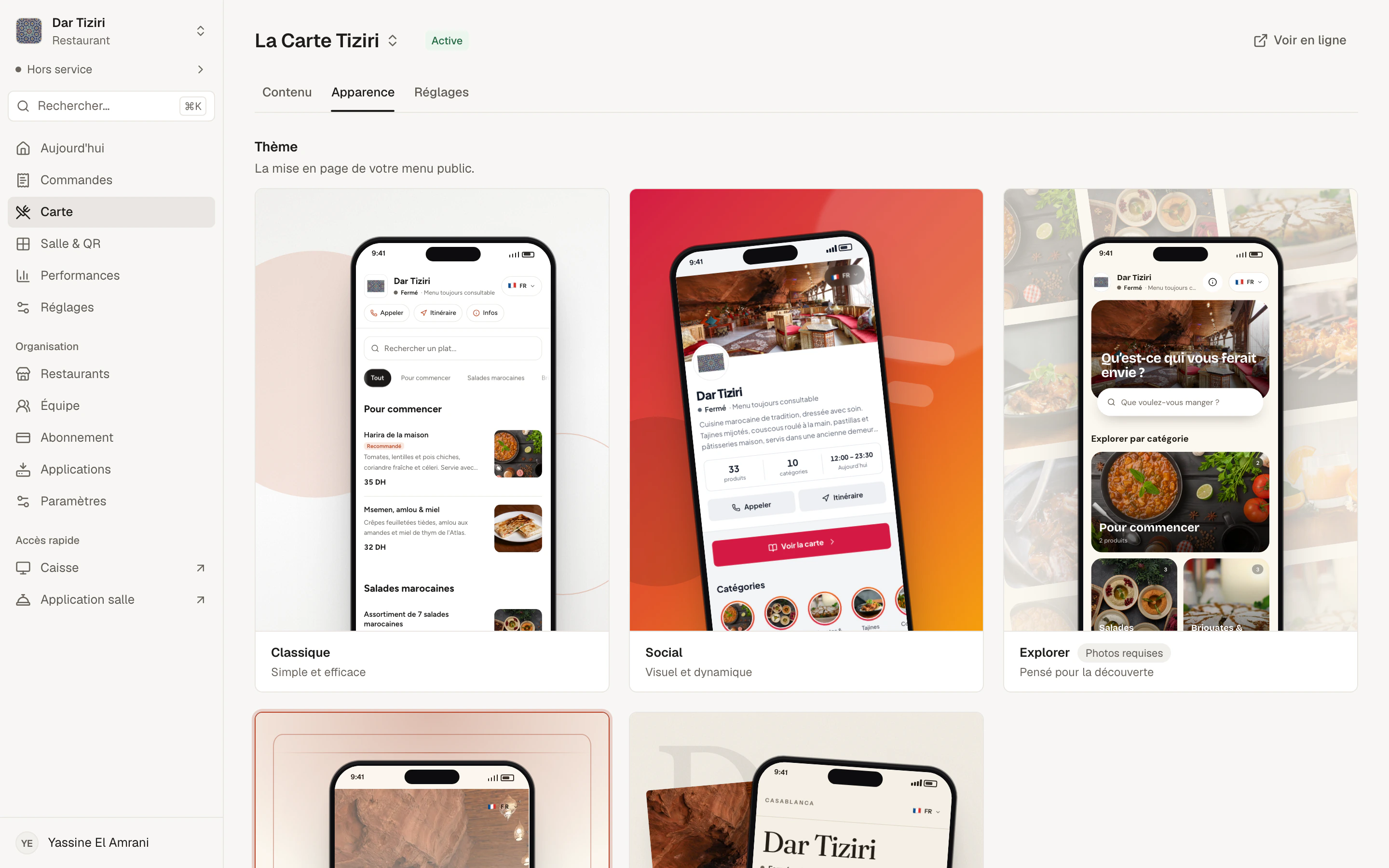
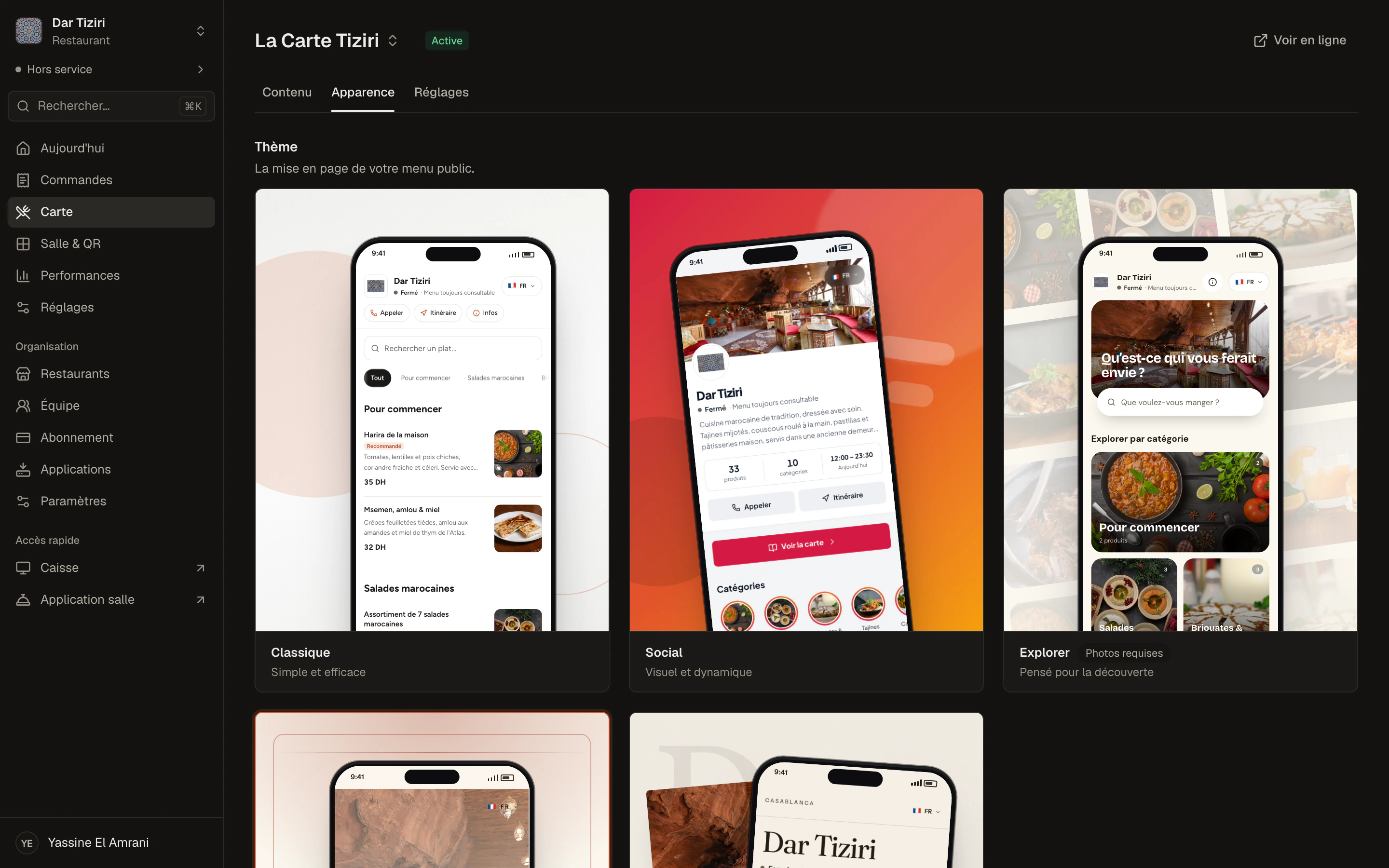
Five themes, your colors, your navigation.
Classic, Social, Explore, Portrait or Signature: each theme has its own personality. Adjust its palette — Menly checks that the text stays readable — and choose how your customers move between categories: tabs, visuals, sections or a compact list.
- Live preview, on phone, tablet and computer
- Descriptions, photos, address, phone and social networks shown or hidden
- Category bar in text or illustrated bubbles
Going live
From paper menu to digital menu.
- 01
Create the menu
Start from the categories suggested for your type of business.
- 02
Add your dishes
Photo, price, description, options. Set menus and suggestions next.
- 03
Choose a theme
Set colors and navigation, check the preview.
- 04
Activate and share
Activate the menu, print your QR codes: it is online.
A few situations Menly handles in a minute.
- Lunch
The dish of the day
You add it in the morning with its price, and mark it sold out at 1:30 pm.
- Ramadan
The ftour menu
Prepared in advance as a second menu, activated on the first evening, deactivated at Eid.
- Season
New prices
You update your prices: the printed QR codes stay the same.
Digital menu questions
Do my customers need to install an app?
No. The menu opens in the phone's browser, after a simple scan of the QR code.
Do I need to reprint my QR codes if I change the menu?
No. The QR code leads to your restaurant, not to a frozen version of the menu: your changes appear the next time the menu loads.
Can I create subcategories?
The Menly menu is organized into categories, without subcategories. To group dishes, use more specific categories, set menus or a dish's options.
How many dishes can I add?
It depends on your plan: up to 50 dishes per menu with Starter, and more on the plans above. Details are on the Pricing page.
Can I show allergens?
There is no dedicated allergen field today; you can list them in the dish description.