Menly Register
A restaurant till connected to the whole floor.
Sell at the counter, take payment for tables, track orders from the QR code and servers: Menly Register shares the same orders, the same menu and the same tables as the rest of Menly.
- Tablet or computer
- Windows and macOS
- Receipts and kitchen tickets
Sell
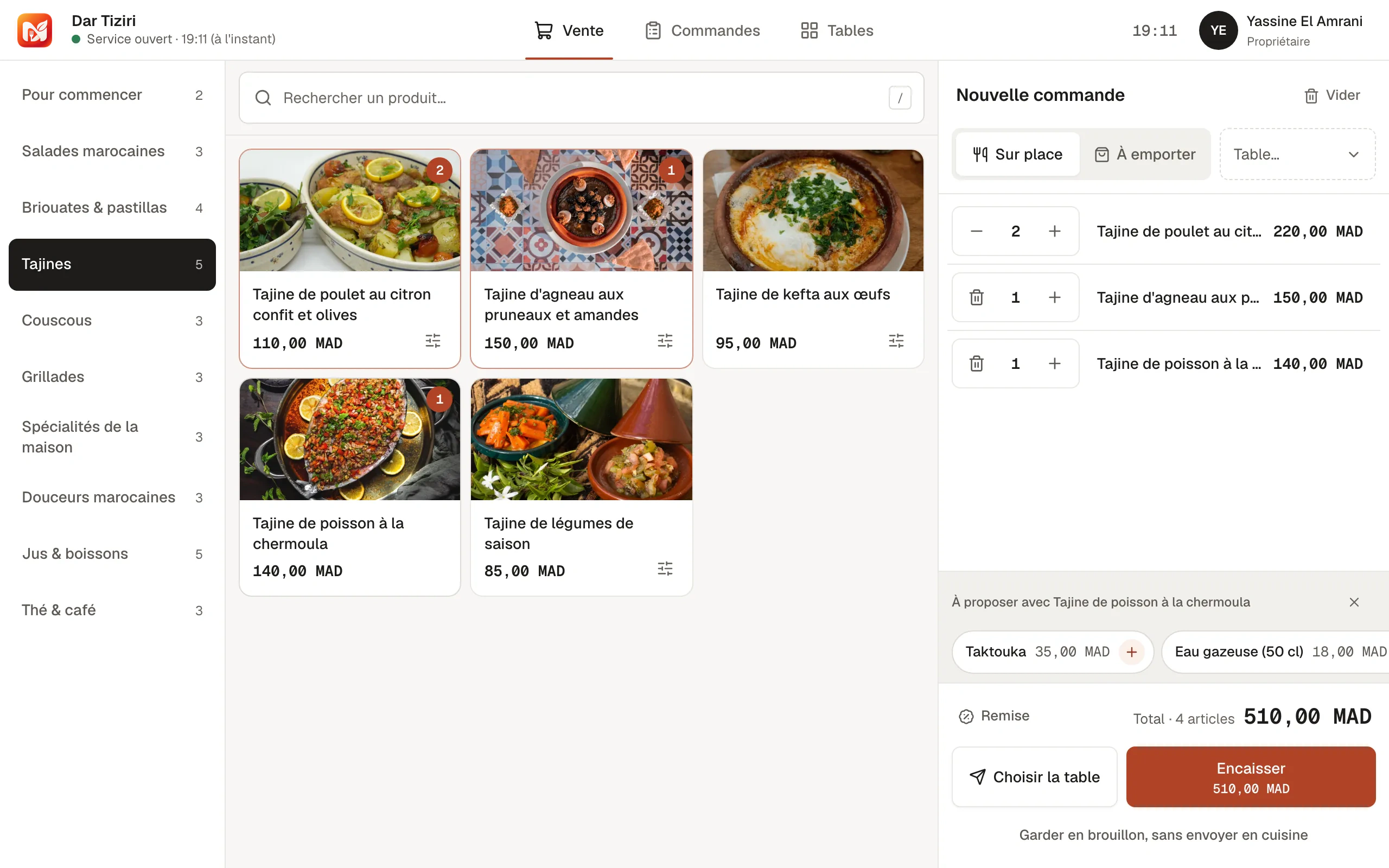
Everything you need at the counter.
Catalog
Your categories and dishes, with search. Options and set menus are configured at the time of sale.
Ticket
Quantities, corrections, discounts, table selection or takeaway sale.
Suggestions
The suggestions from your menu also appear on the ticket.
Payment
Cash with quick amounts and change calculation, card, mobile or other.
Refund
A payment recorded by mistake can be voided or refunded, with the right permission.
Shortcuts
Keyboard shortcuts to work fast on a computer.
Service
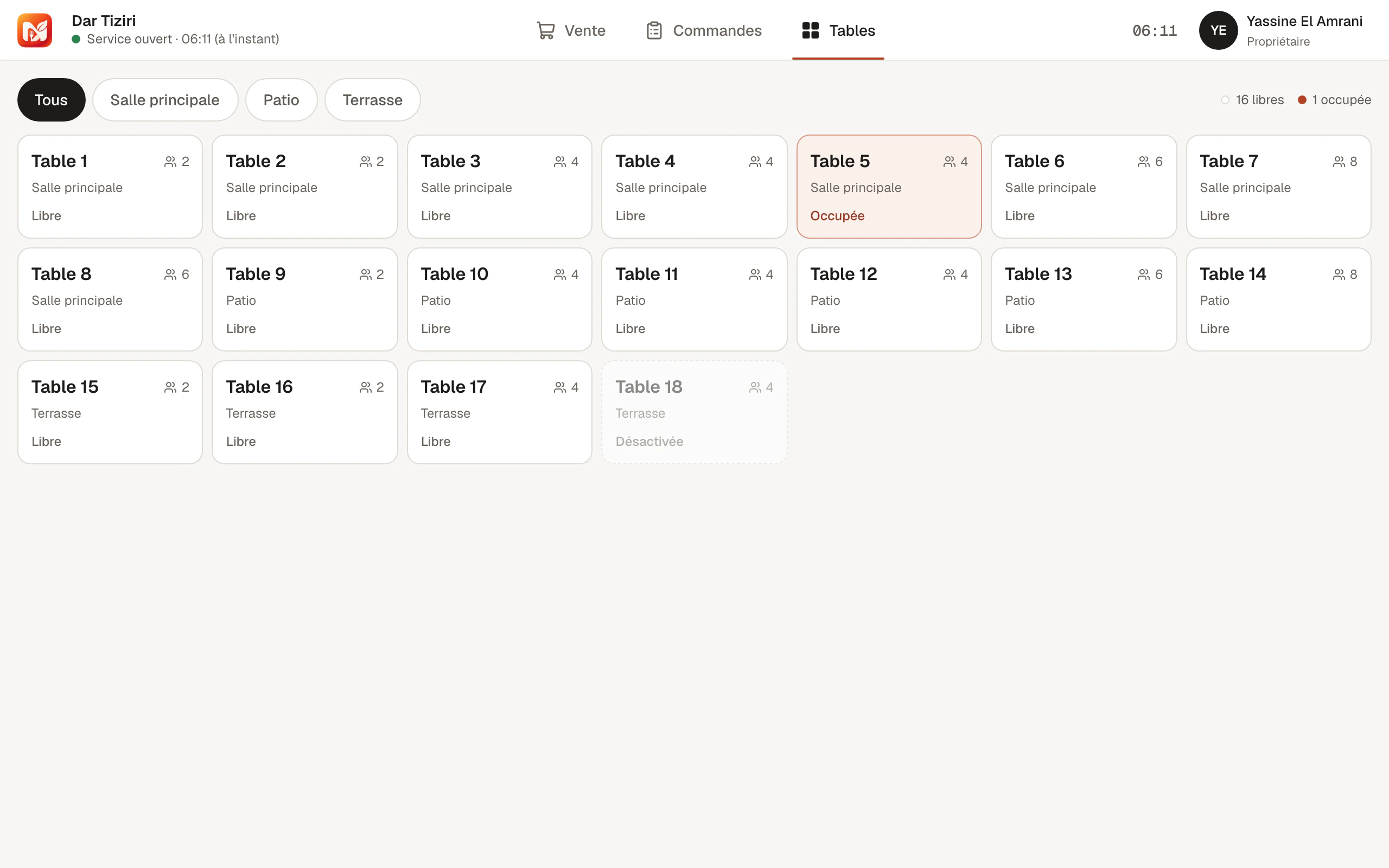
Tables and orders, already in the till.
The Tables view shows the floor: free or occupied tables, with their order. The Orders view follows the whole service. Orders placed from the QR code or by servers arrive there live, ready to be paid.
- Tables view by space
- The service's orders, live
- Take payment for a table in a few seconds
Till
A till session, from opening float to summary.
Each cashier opens their till with an opening float. At closing, Menly summarizes the service: number of orders, revenue, amounts by payment method, refunds, cancellations and expected cash.
- One open till per cashier
- Summary at closing
- Session history in the management dashboard
Opening the till
Opening float
Payments during the service
- Cash
- Card
- Mobile
- Other
Closing
Orders, revenue, amounts by payment method, refunds and expected cash.
Printing
The right ticket on the right printer.
From the desktop app, Menly Register prints directly to your thermal printers: customer receipt at the till, preparation tickets in the kitchen and at the bar, based on the dishes' categories. In the browser, the receipt goes through the system print dialog.
- Network, serial or computer-installed printers
- 58 or 80 mm paper, Arabic included
- Automatic printing and a queue with retry
- Cash drawer opening
Direct printing, cash drawer and customer display: Windows or macOS desktop app.
Order Table 7
2 × ···············
1 × ··········
3 × ·············
- KitchenTagines · Grills · Starters
- BarTea & coffee · Juices
- TillCustomer receipt
Where to install it
The till on the device that suits you.
Tablet
Menly Register installs from the browser, like an app, in landscape mode.
Windows and macOS
The desktop app, with automatic updates, launch at startup and full-screen mode.
Customer display
With the desktop app, a second screen shows the customer their order and total.
Registered stations
Each installed till is linked to its restaurant with a pairing code.
Till questions
Do I need to buy a specific till?
No. Menly Register runs on a tablet or a computer. A thermal printer and a cash drawer are optional and connect to the desktop app.
Does the till work without internet?
No. Menly Register needs a connection to record sales and receive orders; it warns you if the connection is lost.
Is Menly connected to my card payment terminal?
No. Card payment is made on your usual terminal; Menly Register records the payment method used.
Which payment methods can I record?
Cash, card, mobile payment or another method. For cash, Menly calculates the change to give back.
Which plan includes the till?
Menly Register is included from the Pro plan, along with the Menly Floor app.